Your Title Goes Here
Your content goes here. Edit or remove this text inline or in the module Content settings. You can also style every aspect of this content in the module Design settings and even apply custom CSS to this text in the module Advanced settings.
In what order do I need to do everything?
- Create Jane client profile with full name phone number and email
- Send the client the Intake form
- Schedule the GFE appointment
- Once the GFE is approved and the client is in office, complete the treatment record in Jane for the client and be sure to sign and submit
- If the GFE needs to be uploaded, make sure you upload it to the files section
- Upload all before photos
Do I need to purchase Jane?
- There is NO COST to you for Jane as Med Spa Live Management supplies this EMR platform for free.
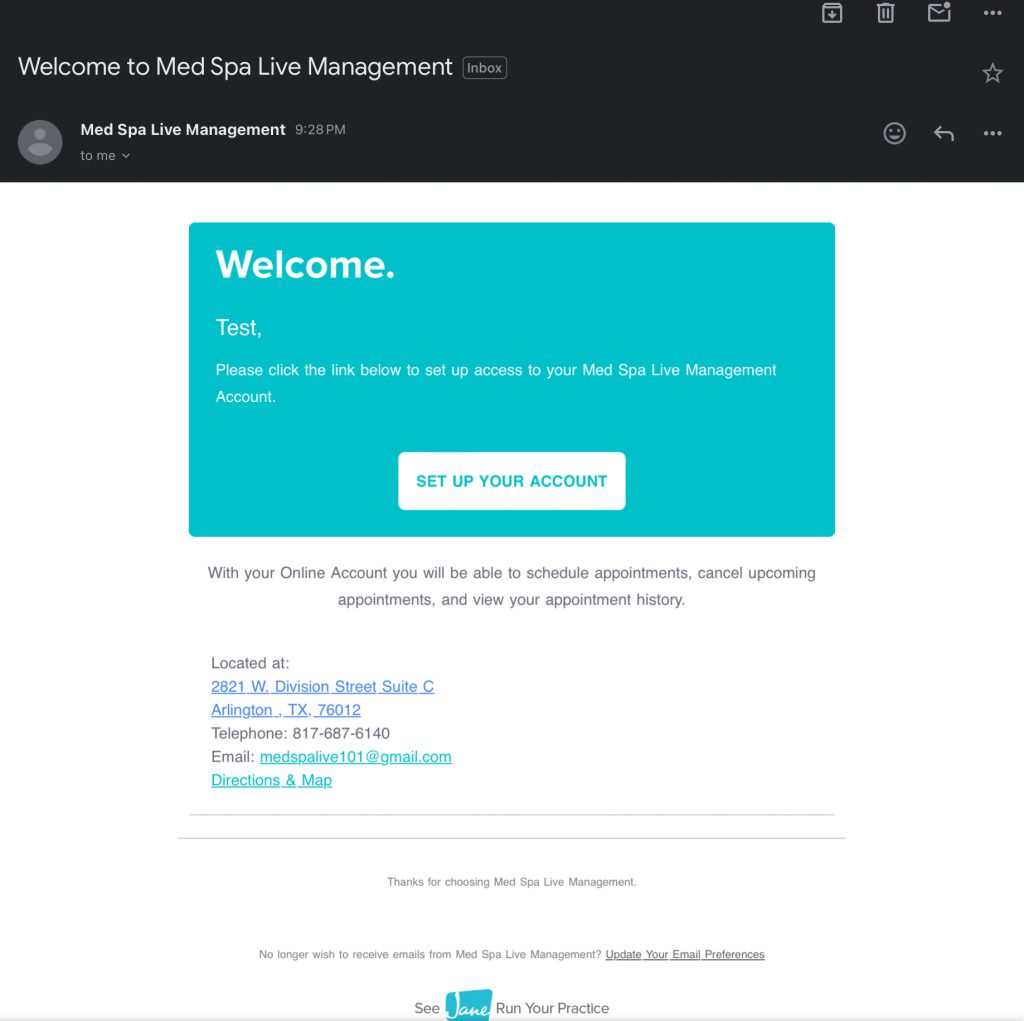
- To get started you will need to find your welcome email from JANE. It will look similar to the image below.
How do I log into the EMR system JANE?
- Go to https://jane.app
- Click SIGN IN
- Choose SIGN INTO MY CLINICS/PRACTICES/STUDIOS
- Enter MSLM
- Enter your log in information
How do I add a Client profile?
- Click CLIENTS tab
- Click NEW CLIENT
- Add Clients: Full name and Email address
- Click SAVE & SEND WELCOME EMAIL
How to send the Intake form to Clients?
- Open the client file
- Under “Online Intake Form” click email
What if my client doesn’t have an email?
No email? No problem! Your client will complete their form in office.
You will need to choose the “Fill out” option in the clients profile.
How to schedule the required GFE
Once you are enrolled under MD coverage, your MHC account will be created by our office manager.
Once your account has been created, you will receive a welcome email that will include documents to read and sign.
Once you have completed all of the documents, please contact Nicole at (424)-388-5191 with MHC to complete your video onboarding tutorial.
GFE Pricing from $20-$26 depending on the combined services. This GFE is good for 1 year unless the patients medical history changes.
How to complete the Treatment record
(You must choose the correct form depending on the procedure you are providing- all treatment forms will not look that same)
FILL OUT EVERYTHING ON THIS PAGE
- Click CHART
- NEW CHART ENTRY
- Find the treatment form needed
- Select the TYPE OF VISIT
- Select all of the PATIENTS CONCERNS
- Enter the total NUMBER OF UNITS THE CLIENT NEEDS
- Select the product name (enter it in other if not listed)
- Next to the product name enter the products LOT NUMBER AND EXP DATE
- Be sure to document where the client will receive their treatment (This may look different depending on the treatment)
- Upload the before photos
- Sign your signature
- Click the SIGN BUTTON to submit the form
I don’t see the treatment record I need.
(Send a message to Office manager Brittney at 817-687-6140 stating “needing new treatment record”)
How to add photos to clients file.
- Click FILES
- Click ADD FILES
- Choose the files needed (You can add multiples)
- Be sure to add a FILE DESCRIPTION
- Toggle over the button to INCLUE IN CLIENT’S CHART
- Click SAVE
How can I order products?
After you have successfully signed up for medical director coverage you will complete a form for access to product ordering.
After completing the form you will receive a password that you must enter to get access into the website.
PAY ATTENTION: The password will be located in the completed form
YOU WILL NOT RECEIVE ACCESS TO THE WEBSITE UNTIL AFTER YOU ARE SUBSCRIBED UNDER COVERAGE WITH US
https://usmedproducts.com/password
I need guidance on a script for clients
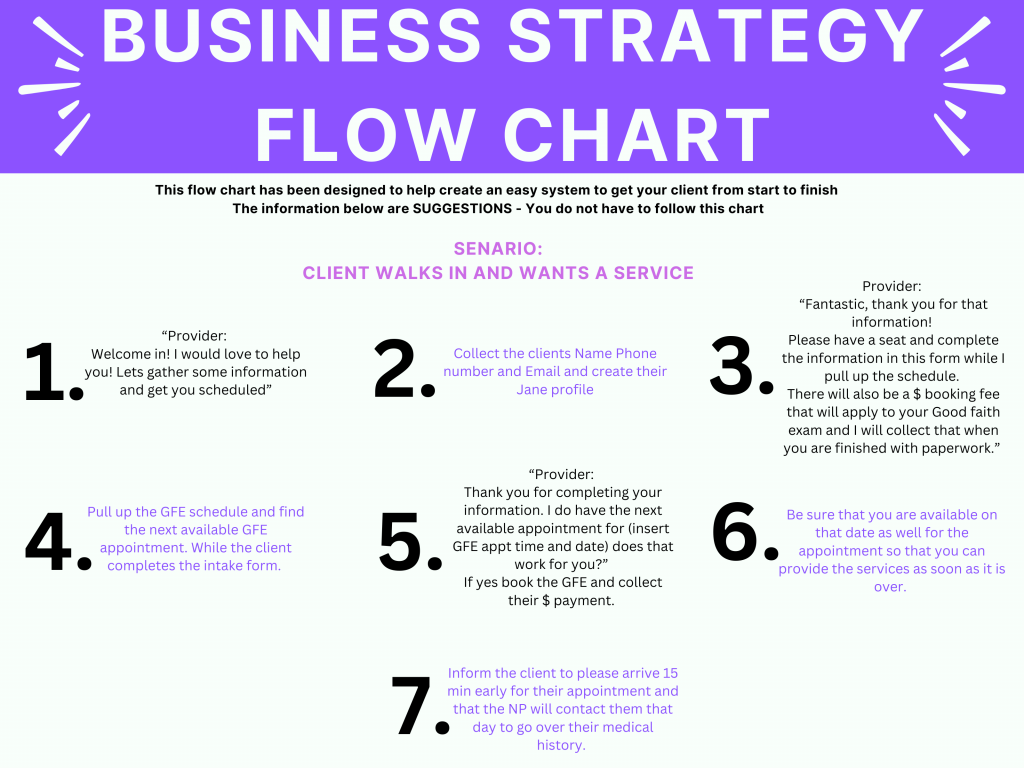
While we do not have an actual script to follow, we can suggest a flow chart for when you have a client that walks in.
.